Blog · Guides
One checkout: the same design in different colours, sizes and fabrics
· 5 min read
Finish your first design and tap Checkout: add the same design in different colours and sizes, copy it onto another fabric, or include completely different designs before completing one order. These anonymous examples are adapted from customer enquiries, with names and identifying details omitted. Screenshots show a demonstration, not a customer's order.
Example question: I'm starting small. How do I choose the fabric, colour and size?
Start with the garment itself. Fabric is chosen by opening a different product, such as a cotton tee or drifit. There is no universal fabric dropdown that changes every shirt. A colour circle changes the colour of the current garment.
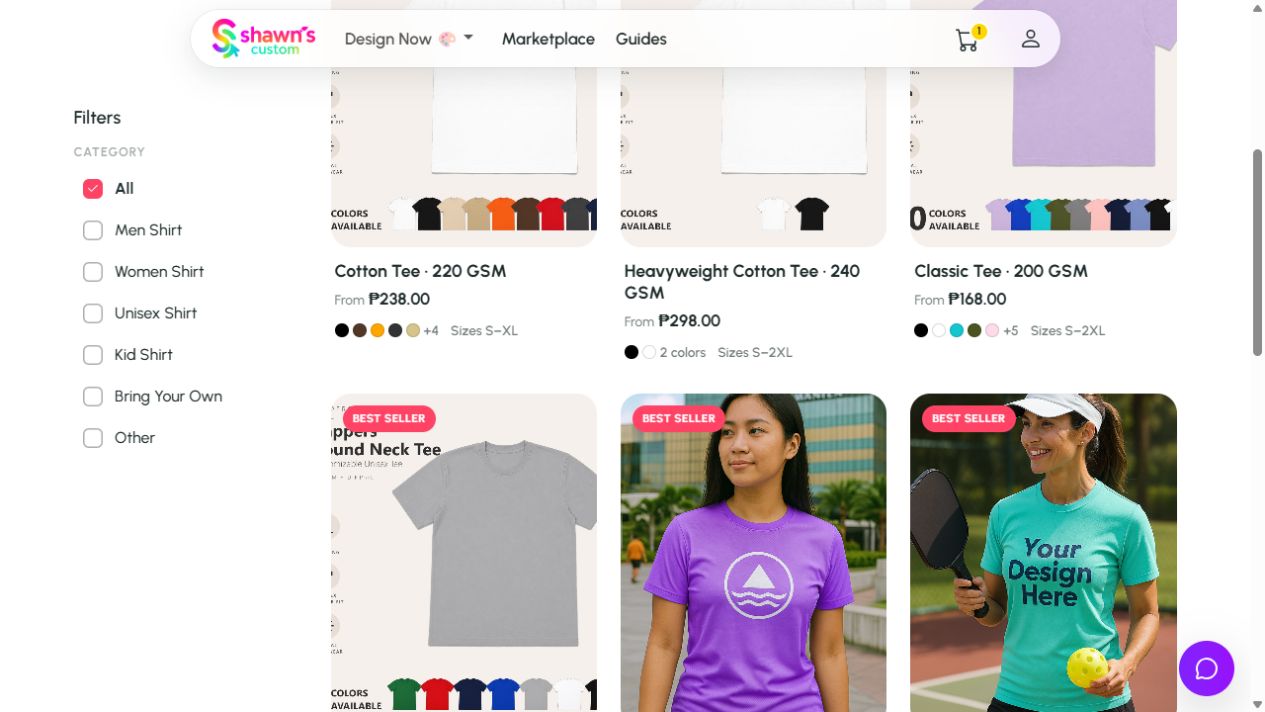
- Open Shop shirts from the site menu. Browse the products, or use Search products to find a garment such as drifit or cotton.
- Open the product you want. Read its name and product details to check the fabric or garment type. Prices and available options belong to that product.
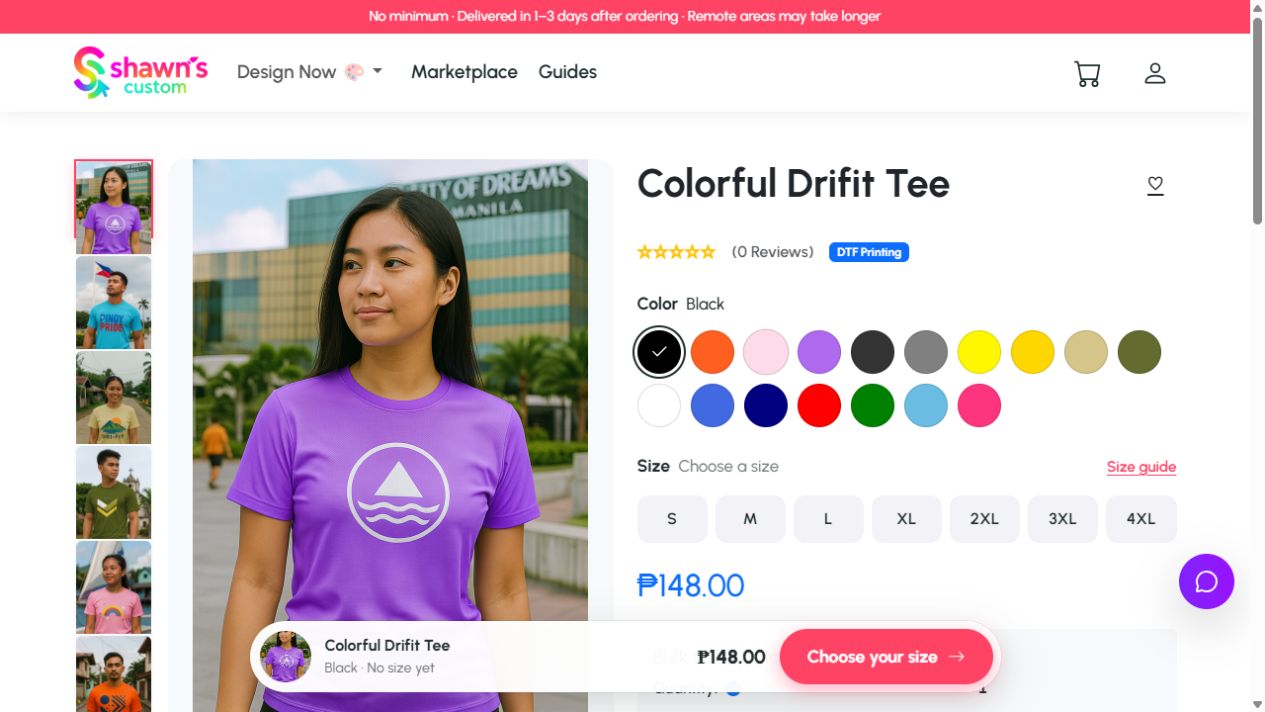
- Tap a colour circle. The selected colour name appears beside Color. For example, the drifit product showed Light Pink during this walkthrough; check current availability rather than assuming every garment offers it.
- Tap your size. Use Size guide to compare the measurements with a shirt that fits you. If you change colour, check the size again because options may differ.
- Check the price and tap Start Designing. Upload your artwork or add text, then review its placement on the shirt.
Colour circles, size buttons and the size guide
The screenshot shows where to select a colour, choose a size and open Size guide on the product page. The large product photo can be a sample print; use the selected colour name and your studio preview to check your own choices.
Finish the first design, then use Checkout to add colours and sizes
You do not need to recreate the artwork for every colour. Different colours and sizes of one design are grouped together in its checkout card.
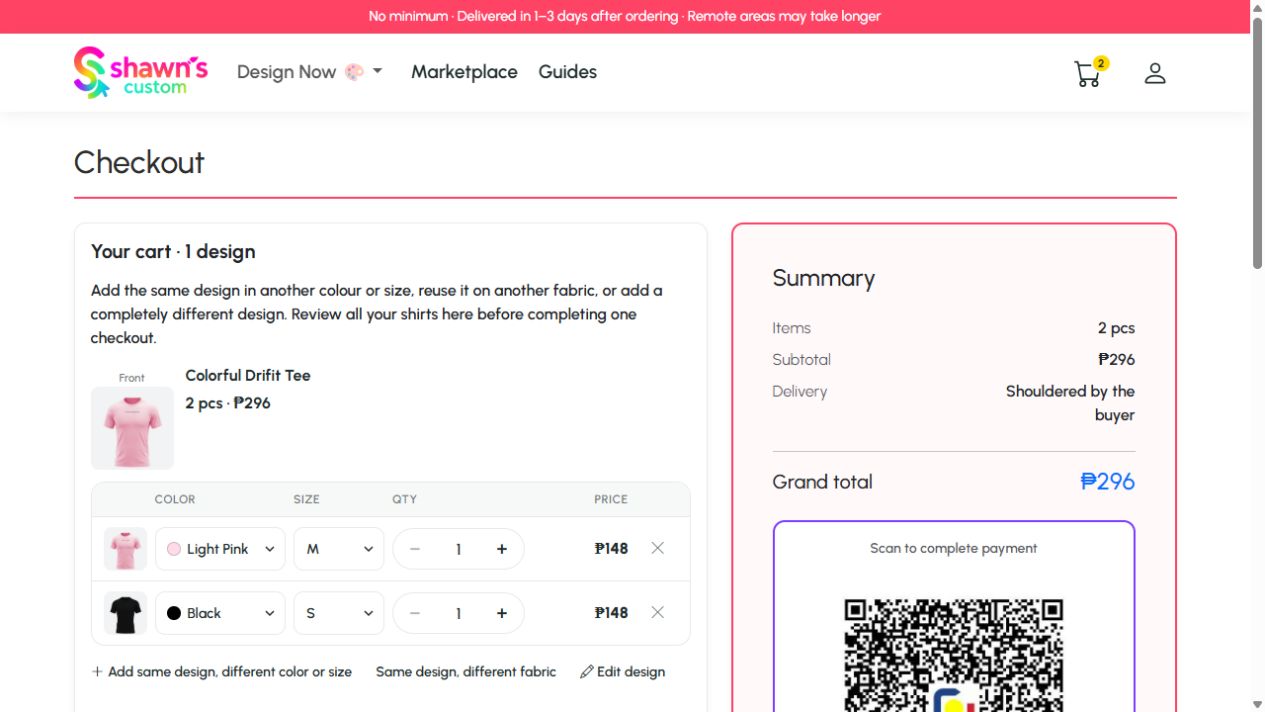
- Finish your first shirt design and tap Checkout. This adds it to the cart and opens the checkout page; you have not submitted or paid for an order yet.
- Under that design, tap Add same design, different color or size. A new row appears using the same artwork.
- Choose Color and Size and set the quantity in the new row. It may initially use the same colour and another available size; change the dropdowns to the options you want.
- Repeat for more combinations. Review the previews, quantities and prices before paying. Use Edit design if the artwork needs adjustment.
Same artwork, another fabric or garment
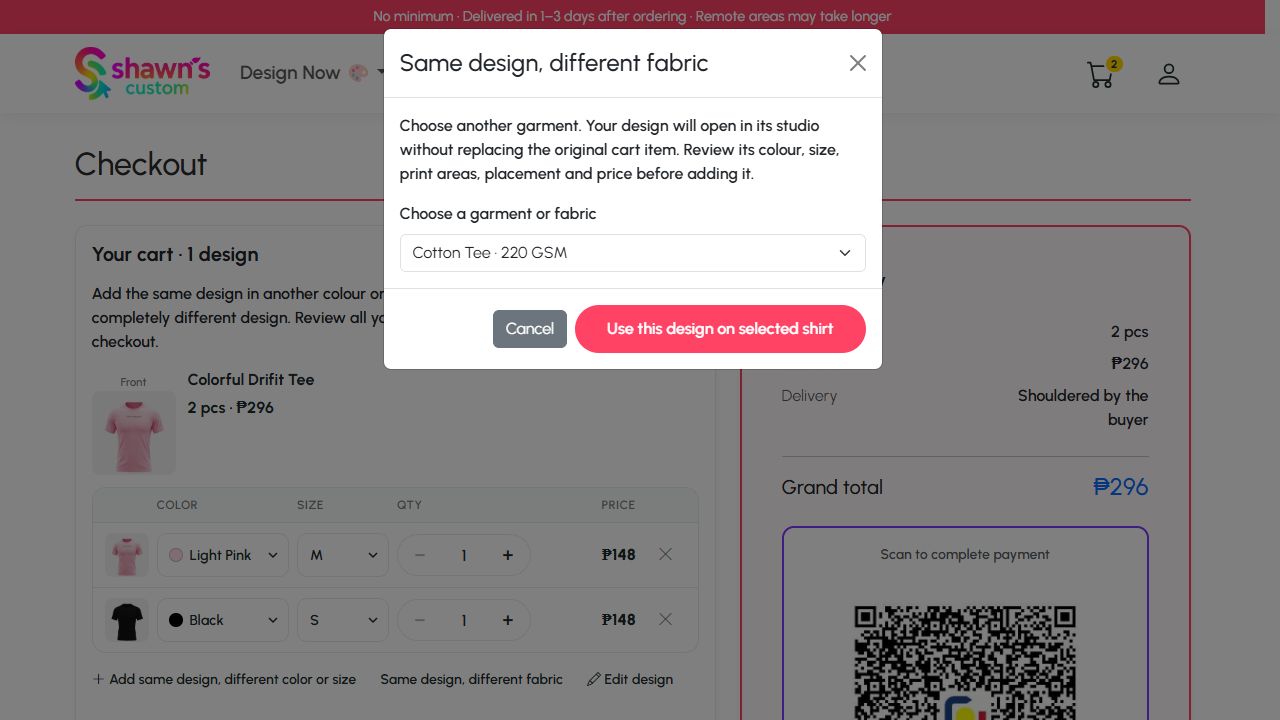
- In Checkout, find the design to reuse and tap Same design, different fabric.
- Choose another garment, such as a cotton tee instead of drifit, then tap Use this design on selected shirt.
- The new garment opens in the studio with the existing artwork. Your original cart item is kept; you do not need to upload or rebuild the design.
- Review the new garment's colour, size, quantity, print areas, placement and price. A garment that does not support all the original print areas cannot be added unchanged; choose a compatible garment.
- Tap Checkout or Save to cart to add the new garment and return to Checkout. Review both garment cards before completing the order.
Several different designs in one checkout
- Use New design on this shirt for different artwork on the same garment, or Choose another shirt for a new design on another product.
- Create the next design and tap Checkout. It is added alongside the first design rather than replacing it.
- Repeat as needed, review every design card and its colours, sizes and quantities, then complete the delivery and payment steps once for the combined order.
Example question: Can I order three black shirts with my own front and back designs?
Yes. Choose a black garment and size, open Start Designing and upload the front artwork on Front. Switch to Back and upload the back artwork. Set the quantity to three if all are the same size; use separate cart items when the options differ. Review both print areas before saving.
Send the original files for a free design check if you are unsure about resolution or placement. Three tees at ₱158 with ₱50 back prints would be ₱624 before shipping, provided those selected options are available at that price. Shipping and arrival time are quoted for the destination; remote deliveries may take longer.
Frequently asked questions
Does changing the colour also change the fabric?
No. Colour dropdowns apply to the current garment. Use Same design, different fabric in Checkout to reuse the artwork on another garment.
Can I keep my design when ordering another colour?
Yes. Finish the first design and tap Checkout. Use Add same design, different color or size, then choose the new row's colour, size and quantity.
Does artwork transfer to a different fabric?
Use Same design, different fabric in Checkout. Choose a garment and open the existing artwork in its studio. Review the print areas, placement, colour, size and price before adding it; your original cart item is preserved.
Can I order several different designs together?
Yes. From Checkout use New design on this shirt or Choose another shirt, make the next design and return to Checkout. Review the separate design cards and complete the combined order.